• Skip to primary navigation
  • Skip to main content
  • Skip to primary sidebar
  • Internet
    • Browsers
    • Cloud Computing
    • Online Video
    • Search Engines
    • Web 2.0
  • Mobile
    • Android Apps
    • Apps
  • Software
  • Funny Stuff
  • Social Networks
  • Web Tools

Daily Bits

  • Home
  • About
  • Archives
  • Contact
  • Advertise

Search Results for: apps

8 of the Best Adobe AIR Applications

February 18, 2023 by Jonathan

Adobe AIR showed a lot of potential during its period of public beta but unfortunately had very few applications that really took advantage of the technology. Thankfully over the last month or so we have begun to see some impressive and useful applications being released.

Here is my pick of the current offerings:

1. Alert Thingy

A favourite of many Alert Thingy started as a FriendFeed application but has since added support for Twitter and the ability to upload photos to Flickr. If you are a user of these services then you will love being able to access the services from within the same interface and window.

2. Guitar Scales V2

This is a great little application, although obviously it will only appeal to a small group of you. Using the virtual fretboard like below you can find any scale for a range of options including root notes, scale types, number of strings, number of frets and tunings.

This information can be found elsewhere online, but I don’t know one other resource that freely provides this information in a way that rivals Guitar Scales for simplicity and functionality.

3. Klok

“Klok is a tool intended to be used by individuals, like myself, who have a need to track the time they spend on projects, tasks or anything else for that matter.” If you find Klok to be a bit more complicated then what you need, I recommend Timecloc which is much simpler and is essentially a stop watch, although you can still add different projects.

4. ReadAir

“ReadAir is an OSX Themed Desktop Client for Mac or Windows. Built with Adobe Air” and available for download from Google Code. I wasn’t actually aware of this one till today due to it not being listed in the AIR application directory. DailyApps discovered it and ran an article about it yesterday.

5. Twhirl

Twhirl is another Twitter and FriendFeed client. Its main feature is the ability to be signed into multiple Twitter and FriendFeed accounts simultaneously. It has a tool for shortening URLs, you can update Pownce and Jaiku, upload pics to TweetPic and use TweetScan to search for tweets.

6. Pownce

pwnceshotI really wonder what the future of Pownce is. Successful startups all generally have one specific focus that can generally be summarized in one word or phrase. Google is search, Twitter is micro-blogging, Flickr is photo sharing and so on. Pownce seems to have a little of everything and as such is making little headway in any.

However If you are a Pownce user however then this application is a must; you’ll find it a great deal easier staying up to date on your contact’s latest notes, files and photos etc. An option I feel is lacking is the ability to minimize to the system tray.

7. Ebay Desktop

This is one of the first, and still one of the best, AIR applications. It’s impressive in that it really goes beyond replicating an online service on the desktop and instead extends and enhances the experience. Not only does it look great, but Ebay Desktop takes a far more graphical and interactive approach with the browsing, tracking and buying and selling of items.

Drag and drop functionality, instant search results and a real time clock that counts down to the end of the auction are some of the features in this app. If you are even an occasional Ebay user its worth giving Ebay Desktop a try.

8. Google Analytics

Google Analytics is a favourite of many bloggers as it provides easy access to all your Analytics data and profiles from your desktop. It’s attractive and extremely useful if you use Analytics on a regular basis. (You can also get Google Trends on your desktop with XeGTrends)
Filed Under: Internet

7 Tips to Keep Windows XP Fast and Responsive

February 12, 2023 by Sumesh

Windows XP is a landmark in Microsoft’s history. After a couple of unstable releases, Windows XP ironed out all the creases. Even today, Windows XP is more stable and considered a better OS than Vista by many.

No matter how stable, any (Windows) operating system requires proper care, optimization and tuning to keep it quick and responsive over long periods. Temporary files, crumbs of partially (un)installed programs, cached files and similar add to the bloat and make Windows XP slower over extended usage.

However, following a few simple tips, we can keep XP squeaky-clean and fast – just what you want. Follow these easy tips:

1. Install only necessary apps.
Installing every application you come across, trying them out for a few days and then uninstalling them is a bad idea. Install only the important applications, and then stay with it – do not uninstall. The reason is that more often than not, applications leave various files (temporary, shared etc.) even after uninstalling them. Over time, multiple install/uninstalls can lead to an unhealthy system with unnecessary bloat (and hence slowdown).

2. Install a good anti-virus, anti-spyware and firewall.
Though the chances of being infected with malware is limited if you access only legitimate sites and downloads, it is still better to be on the safe side. Installing an anti-spyware is important, because spyware can simultaneously slow down your system and use internet bandwidth. Refer to my 8 Freeware for Windows post for good software.

3. Defragment your harddrive.
Defragmenting hard drive is commonplace, and is advisable. However, the default defragmentation app on Windows defragmentation is very slow, so using a third-party tool is a good idea. PowerDefragmenter accomplishes this task effectively. See a how-to by Shankar.

4. Use multiple partitions cleverly.
Using multiple partitions can improve data seek times significantly. Create partitions for operating system, program files (and use this partition as the location for all app installs), documents and media. Try to keep the partitions small in size, except for the media partition.

If you have more than one hard drive, use one of them for OS, and the other for other files (media, programs, My Documents etc.). This improves performance, and also increases the longevity of the hard drive on which the OS is located, since the data access is made for OS only. You can check the eHow page about hard disk partitions.

5. Optimize page-file usage.
Windows controls the page-file usage by default, but performance can be improved by setting the limits manually. Go to Control Panel > System > Advanced, and click the settings button under Performance. In the Performance dialog box, click the Advanced tab. Click on the Change button under Virtual Memory. In the dialog box that comes up, click ‘Custom’ and set the value at 1.5 times that of your system RAM. For example, if your computer has 1GB RAM, enter 1536 (remember, 1 GB=1024 MB).

6. Control startup applications:
Startup items can plague your computer with slower startup times. The best way to improve boot times is to disable unnecessary startup programs. Unlike other tweaks mentioned in this post, this tweak will be different for everyone. Common apps to disable include Skype, Yahoo Messenger, iTunes etc. However, ensure that you do not disable antivirus, anti-spyware and firewall applications.

Not sure how to do this? Check this TweakXP article.

7. Ditch Internet Explorer.
Internet Explorer renders pages poorly and gets a lot of flaming for it. However, an even more important aspect is security. Windows and Internet Explorer are tightly integrated. This means that any vulnerability in the browser can make the OS also vulnerable. Spyware attacks, phishing etc. are commonplace on IE. IE 7 is better in terms of security, but still has creases to iron out. A better idea would be to get a third-party browser – Firefox or Opera.

Filed Under: Software Tagged With: fast, keep, responsive, tips, windows, xp

25 Incredible Skins, Resources & Tools for the Gmail Power User

February 11, 2023 by Skellie

Gmail is one of those rare things unanimously loved by everyday web users and tech-heads alike. The possibilities are endless. It can be anything from a simple email client to your central nervous system on the web. How far you take it is up to you.

Each day seems to produce a new hack, tool or tip for better Gmail use. In this post, I want to highlight only the very best, hand-picked from hundreds of resources. This is not another resource list you’ll bookmark and never look at again. These tips, monster resources and tools will change the way you use Gmail.

Best Gmail skins

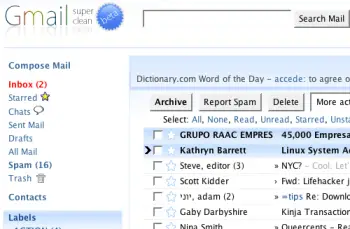
1. Super Clean skin — probably the most popular Gmail skin, Super Clean replaces the standard interface with a minimalist white and sky-blue version. Perfect for the budding Zen-master.

gmailsuperclean.png

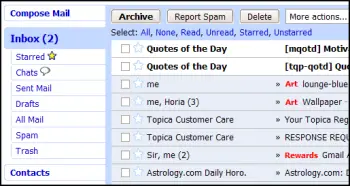
2. Air skin — makes subtle changes to the visual interface, adding clean lines, a cloudy color combo and changes the primary font. The perfect solution for users looking for a fresh look without any radical changes.

gmailair.png

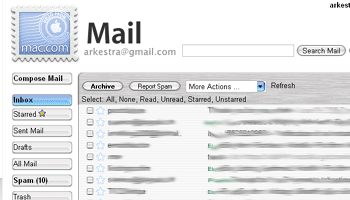
3. Mac skin — a Mac-inspired Gmail skin to match the Mac you’re checking your mail on! Adds a Mac-style menu and color-scheme to your Gmail account.

gmailmac1.gif

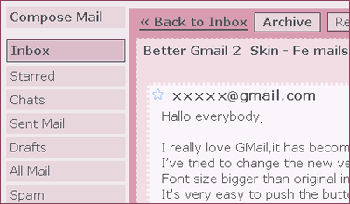
4. Fe Mail skin — a well-crafted and very pink Gmail skin.

femails.gif

5. Dark Gmail skin — almost the complete opposite to the last link, this skin is one for the dark and brooding Gmail user.

darkskin.png

6. Silverstar skin — a popular minimalist gray theme.

simplicity.gif

7. Brushed skin — a gray and maroon theme with nifty gradients thrown into the mix.

brushed.png

Best Gmail resources

8. The Gmail Shortcuts Cheat Sheet — a comprehensive printable cheat sheet of useful shortcuts for Gmail. Print it and stick it to your desk: these shortcuts are worth memorizing. Did you know pressing ‘Tab’ and ‘Enter’ will send the email you’ve composed?

9. Gmail Craze: 40+ Tools and Hacks for Gmail — a frequently updated post from MakeUseOf featuring essential Firefox extensions, Greasemonkey Scripts, Desktop Apps, Web Tools, tips and hacks.

10. 55 Gmail tips — this website is dedicated to providing detailed Gmail tips. It covers everything from excluding chat from search results to importing Hotmail contacts.

11. Hack Attack: Become a Gmail Master — this fantastic guide from Lifehacker introduces Gmail’s most powerful capabilities in a way that’s easy to follow. It will help take anyone only familiar with Gmail’s basic functions to the next level.

12. Use Gmail as Your Universal Email Account — got too many email addresses to keep track of? Forward them all to Gmail and deal with your incoming mail from one central location.

13. Ultimate Gmail Collection: Over 80 Tools and Tips — a monster list of extensions, scripts, apps, notifiers, how-tos and shortcuts for the serious Gmail user.

14. Turn Gmail Into Your Personal Nerve Center — influential technology blogger Steve Rubel shares his essential Gmail life hacks, including:

  • How to turn Gmail into a massive personal database
  • How to get real-time news updates in Gmail
  • How to automatically store your bookmarks in Gmail
  • How to manage Calendar and To-Dos in Gmail
  • How to blog from Gmail

15. 1 Awesome Gmail Tip You Didn’t Know About. Seriously. — this easy tutorial explains how you can customize your Gmail address to serve different purposes.

16. Gmail Toolbox: 60+ Tools for Gmail — Mashable.com works its magic with a huge compendium of Gmail tools. It includes all the extensions you know and love in addition to some (previously) undiscovered gems.

17. Access Gmail When It’s Blocked at Work or School — Engtech provides five strategies you can use to check your Gmail anywhere, even when the I.T. department doesn’t want you to.

18. Mark Spam Messages as Read — this simple filters hack allows you to prevent your unread spam count showing in the main display. Best of all, it will still alert you to items that have been incorrectly marked as spam.

19. Gmail Tips and Tricks: Monster Roundup — Lifehacker’s big roundup of its favorite Gmail downloads, hacks and articles.

Best Gmail tools

20. Gmail Drive — this tool puts Gmail’s extensive storage capacity to use, adding a new drive to your computer which can be accessed via Windows Explorer. You can create folders and drag and drop files within the drive. If you’ve got unused space in your Gmail account, why not add some more space to your hard drive?

21. GTD Inbox — the email solution for productivity nuts, GTD Inbox is a Firefox extension designed to merge the “Getting Things Done” productivity method with Gmail. It transforms Gmail into a productivity hub you can use to set and manage tasks or to-dos. The interface is very subtle and won’t interrupt the look and feel of Gmail as you know it.

22. Better Gmail 2 — this simple and elegant Firefox extension, authored by Gina Trapani, makes several improvements to Gmail’s core functionality, allowing you to hide the ever-annoying Spam count, compose Mailto links in Gmail and view your storage quota as a useful graph. If you’re still using the old version of Gmail, you’ll need to download the original Better Gmail extension.

23. Gmail Music — this nifty little web-based GUI app allows you to store MP3 files in your Gmail account and play them on any computer.

24. Dragdropupload — a Firefox extension that does away with the pesky ‘Browse’ interface. It enables drag and drop email attachments to make the process quick and painless.

25. Gmail Skins — a Firefox extension to customize the color of your Gmail inbox.

Suggest your favorite skins, resources and tools in the comments section!

Filed Under: Web Tools Tagged With: gmail, power, resources, skins, tools, user

2007: The Year of Social Networking

February 10, 2023 by Arun

An article at PC World does a great job of summarizing the major developments in social networking space in 2007 and ponders over the prospects and uncertainties for 2008.

One insightful point mentioned in the article is how innovation at start-ups startles tech giants. Google, the great Web firm that one-upped Yahoo in claiming the search crown and hailed as the poster child of innovation was beaten at the social networking front. All the major internet firms such as Yahoo, Google and MS were done in by FaceBook which sort of perfected the concept of applications around social networks.

Social Networking is moving from the domain of an ‘nice add-on’ feature to a must-have even at the enterprise level. Various organizations are now waking up to the possibility that to attract the next generation of talent, it is essential to incorporate the flavor of social networking and connectivity within the enterprise.

While there were major salvos fired at FaceBook’s walled garden approach to social networking apps (which it did counter by licensing the F8 platform), it will be LinkedIn’s progress in the API space that will be really interesting. Being a site for business networking, it is one network that will really see a boost with professional networking going beyond just the website to the Web as such.

But another shift that can also be expected is the increased availability of affordable feature-rich mobile phones and compelling mobile applications. Apart from the enterprise user, the benefits of mobile applications have not really trickled down to the casual user. 2008 will hopefully be the year when mobile applications especially for social networking will really take off. Since Google has made several bold moves in the mobile space, expect a lot of innovation in this front.

Overall, its been a great year for Social Networking and for 2008 there’s a lot to anticipate.

Filed Under: Social Networks Tagged With: f8, facebook, google, innovation, linkedin, Mobile, social networking

50 Tools For Online Entrepreneurs Reviewed On Short

July 31, 2022 by Ina

No matter what kind of online business you want to launch and manage all by yourself, these 50 web tools will help you.

Use as many web tools (no-code software to create databases, Bootstrap Editor, WordPress themes and plugins, eCommerce smart solutions including famous templates, and much more) as you need.

Keep reading to find out important information about all these web tools. [Read more…] about 50 Tools For Online Entrepreneurs Reviewed On Short

Filed Under: Business Tagged With: business, online business, web tools, website

How to Spot Fake Amazon Reviews

July 19, 2022 by Anne S

Fake Amazon reviews are a dime a dozen. Mind you, these are hard to spot, especially with about 42% of reviews on Amazon are fake or “incentivized”.

Some Amazon sellers buy fake reviews to boost their product rankings and even attract buyers in the process. It is also quite easy to get a fake review for your product.

An example would be a positive rating from a made-up user account, which used to be common. Another way for a product to get a fake review is to pay multiple users to write about the product without purchasing or using it firsthand.

On the other hand, some real shoppers give honest, but glowing reviews in exchange for products, discounts, and even gifts – these are called incentivized reviews.

The most important question is, how to spot fake Amazon reviews? We are going to explore that in a while.

[Read more…] about How to Spot Fake Amazon Reviews

Filed Under: Internet Tagged With: amazon, reviews

  • « Go to Previous Page
  • Page 1
  • Interim pages omitted …
  • Page 22
  • Page 23
  • Page 24
  • Page 25
  • Page 26
  • Interim pages omitted …
  • Page 42
  • Go to Next Page »

Primary Sidebar

Privacy Policy

Copyright © 2025 · News Pro On Genesis Framework · WordPress · Log in